

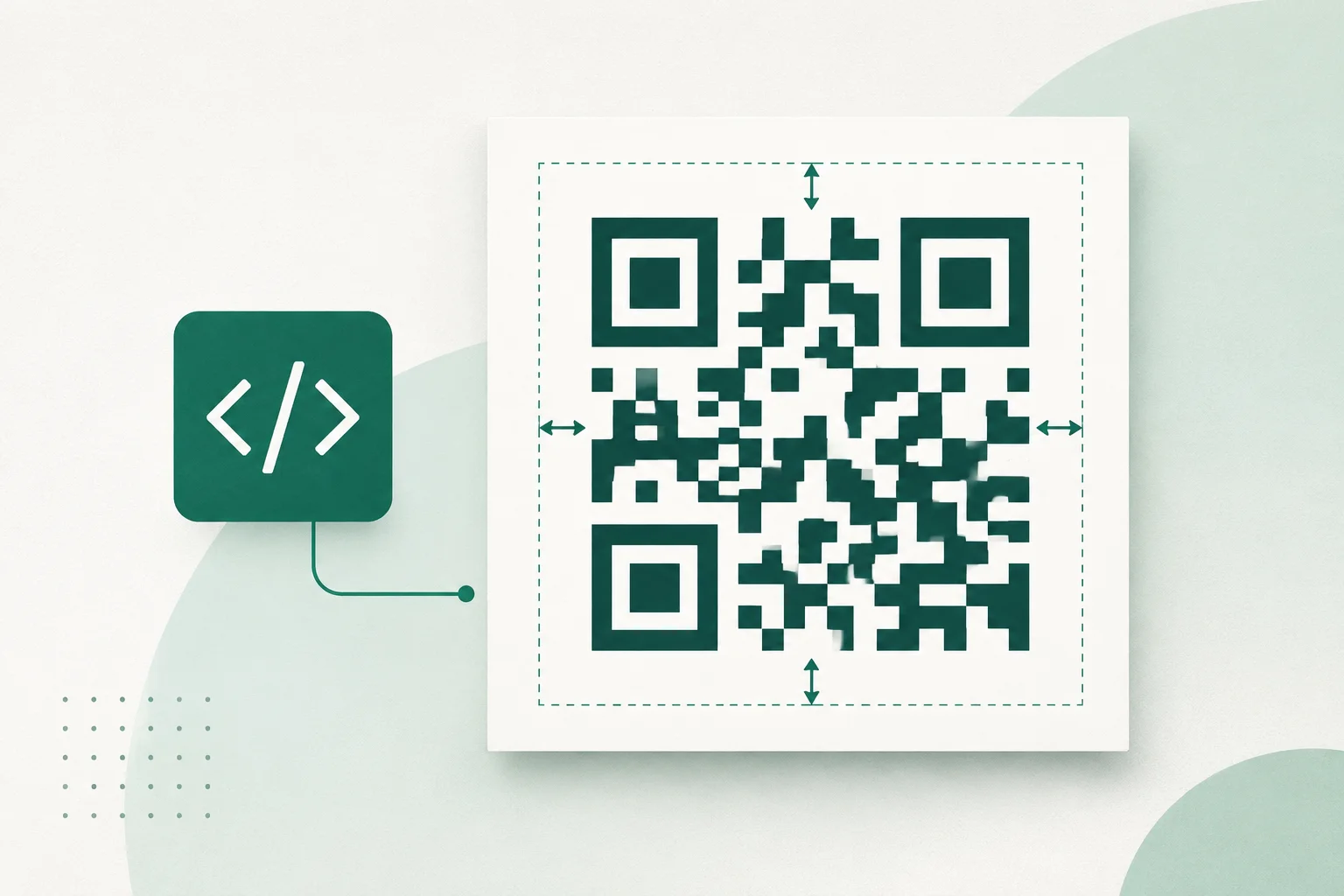
A QR code that works on a laptop screen can become frustratingly unreliable when it is printed on a small label. The code itself may be valid; the problem is often the white space around it, weak contrast, or a destination URL that was never tested outside the developer's browser.
Here is a practical way to generate one in Node.js, keep its output predictable, and check it before it reaches a customer. We will use Imazeo's QR API, which accepts a project-scoped request and returns the image directly. The same design checks apply if you use a local QR library.
Decide what the code should contain
For a menu, event pass, or product card, the simplest useful QR payload is usually a short HTTPS URL. Treat it as a destination, not as a graphic asset: if you print it on 2,000 packages, changing the artwork later is expensive.
Start with a link you control and expect to keep. A static QR code stores the exact text you send; it does not magically update when your website changes. If you want a destination you can revise, encode a short redirect URL under your own domain and maintain that redirect separately. Imazeo generates static codes; it does not host or manage redirect destinations.
Also keep the content short. More data generally produces a denser pattern, which can be harder to scan when the code is displayed or printed small. A short URL is usually a better choice than a lengthy address full of tracking parameters.
Three design choices that matter more than decoration
Leave room around the pattern
A QR code needs a clear boundary, called the quiet zone. The QR Code specification guidance from DENSO WAVE calls for four modules of empty space on each side. A module is one of the little square units in the pattern. Cropping that border for a tighter card layout is an easy way to make a perfectly valid code difficult to read.
We will request a four-module margin explicitly rather than depending on a provider default. See DENSO WAVE's quiet-zone explanation for the sizing principle.
Use contrast before color
Dark modules on a light, solid background are the safe starting point. Imazeo green on white can work well; pale green on cream is a poor choice for something that will be scanned under uneven lighting. Avoid placing the code directly over photography, textures, or gradients.
Choose a sensible error-correction level
QR codes offer four levels: L, M, Q, and H. Higher correction can help when a symbol is partly damaged, but it also reduces the amount of data that fits in the same version. It is not a substitute for sufficient size, a quiet zone, or good contrast. For an ordinary short link, start with M and test the actual output.
Generate an SVG using Node.js
This example uses Node.js with built-in fetch; no extra package is needed. You'll need an Imazeo account, a project ID, a project API key, and the correct API origin for your deployment. Create the key in your Imazeo workspace and keep it on the server, not in browser code or a public repository.
Set IMAZEO_API_ORIGIN, IMAZEO_PROJECT_ID, and IMAZEO_API_KEY as environment variables. Use your actual API origin; the marketing site address is not necessarily the API host.
Save the following as generate-qr.mjs:
import { writeFile } from "node:fs/promises";

const {
  IMAZEO_API_ORIGIN,
  IMAZEO_PROJECT_ID,
  IMAZEO_API_KEY,
} = process.env;

if (!IMAZEO_API_ORIGIN || !IMAZEO_PROJECT_ID || !IMAZEO_API_KEY) {
  throw new Error("Set the three IMAZEO environment variables first.");
}

const endpoint = new URL(
  `/v1/projects/${encodeURIComponent(IMAZEO_PROJECT_ID)}/tools/qr`,
  IMAZEO_API_ORIGIN,
);

const response = await fetch(endpoint, {
  method: "POST",
  headers: {
    "X-API-Key": IMAZEO_API_KEY,
    "Content-Type": "application/json",
    Accept: "image/svg+xml",
  },
  body: JSON.stringify({
    content: "https://example.com/events/open-day",
    format: "svg",
    size: 512,
    margin: 4,
    errorCorrection: "M",
    foreground: "#163F35",
    background: "#FFFFFF",
  }),
});

if (!response.ok) {
  const requestId = response.headers.get("x-request-id") ?? "unknown";
  throw new Error(`QR request failed: ${response.status} (${requestId})`);
}

const contentType = response.headers.get("content-type") ?? "";
if (!contentType.includes("image/svg+xml")) {
  throw new Error(`Unexpected output type: ${contentType}`);
}

const svg = Buffer.from(await response.arrayBuffer());
await writeFile("open-day-qr.svg", svg);
console.log(`Saved open-day-qr.svg (${svg.length} bytes)`);
Run it after setting the environment variables:
node generate-qr.mjsOn success, you will have open-day-qr.svg in the current folder. The example URL is deliberately fictional: replace it with a destination you own before you distribute the code. The response is SVG image data, not a JSON object with a hosted download link. Generation also consumes one Imazeo processing credit, subject to your account's limits.
Notice that the script checks both the HTTP status and the returned content type before saving the file. That avoids accidentally storing an API error response as if it were an SVG. For full request parameters and limits, use the Imazeo QR API reference.
Should you export PNG or SVG?
Neither format is universally better. Choose based on where the code will live:
Output | Good use | Watch for |
|---|---|---|
SVG | Printed cards, labels, and layouts that need resizing | Preserve the full symbol and margin during export |
PNG | Applications and tools expecting raster images | Generate enough pixels for the final display size |
For PNG, change format to "png", save the result with a .png extension, and validate the response as image/png. Do not enlarge a tiny PNG in a print design and expect clean square edges. And do not remove the quiet zone just because a layout looks tighter without it.
A short scan test before you ship
Before using a code in production, do these checks with the exact asset your customers will see:
Scan the finished design. Test it after embedding it in the card, PDF, label, or page. Testing only the standalone SVG misses layout problems.
Try more than one phone. Test a couple of devices, not just the one used to generate the file. Check under normal lighting and at the intended viewing distance.
Open the destination. Confirm the URL is public where it needs to be, works on mobile, and does not rely on a logged-in development session.
Check the production size. A QR symbol on a wide monitor behaves differently from one on a small sticker. Print or display it at its real size and scan again.
If scanning is inconsistent, resist the urge to add more error correction immediately. First check that nothing overlaps the border, the foreground and background are distinct, and the symbol has not been reduced too far. Those are often quicker problems to fix.
Using QR codes in an application
For a one-off event, generating a file is enough. In an application, keep the responsibilities separate: your system owns the destination URL and user permissions; the QR generator owns the encoded image. Store the destination or item identifier alongside your own record so you can reproduce the asset later.
Do not expose a project API key to a browser just to create a code. Let your backend validate the requested destination, call the generator, and return only the resulting image to the client. If you want to retain the output, handle storage deliberately rather than assuming a generation request creates a permanent hosted file.
Try next
Generate one SVG with a real destination, place it into the actual design, and scan it from a second phone. When that works, consider PNG for applications that require it. You can experiment in the Imazeo workspace or adapt this script using the QR API documentation. If your QR code will sit beside product photography, our image optimization guide covers preparing those images for the web.